 EzyChat
EzyChat Lite guide
Getting started with EzyChat Lite
Install EzyChat Lite, create the admin account, link your WhatsApp number, invite your team, open the inbox from phones, and learn the daily basics.
Written for EzyChat Lite 0.1.28. Button and menu names match the app in English.
Before you start
You need:
- A Windows 10/11 PC or a Mac that stays on while your team works. EzyChat Lite runs on this computer and keeps your chats there.
- The phone with your business WhatsApp number, to link it once.
Read this first
EzyChat Lite is not affiliated with WhatsApp or Meta. It connects through an unofficial WhatsApp Web client, which is against WhatsApp's Terms of Service, so the number can be temporarily or permanently banned. Use it at your own risk, ideally with a number you can afford to lose.
It is built for people answering real conversations. Do not use it for bulk messaging, spam or automated marketing.
Download and install
Download the installer for your computer (latest version: 0.1.30):
- Windows 10/11 (x64) (.exe)
- Mac with Apple Silicon (M1 or later) (.dmg)
- Mac with Intel processor (.dmg)
All versions are on the GitHub Releases page. Only download installers from there or from this site.
The installers are not code-signed yet, so your computer warns you the first time:
- Windows: when Windows protected your PC appears, click More info, then Run anyway.
- Mac: open the
.dmgand drag EzyChat Lite to Applications. Then right-click (or Control-click) the app and choose Open, then Open again. On recent macOS versions you may instead need System Settings → Privacy & Security → Open Anyway.
Create the admin account
Open EzyChat Lite. It starts the inbox on this computer and opens Welcome to EzyChat Lite.
Enter a Username (3–32 characters: letters, numbers, dot, dash, underscore), a Display name (shown to teammates next to your replies) and a Password of at least 8 characters, then click Create admin.
Only on the computer running EzyChat Lite
For security, the first admin can only be created on that computer itself (http://localhost:7420), never from a phone or over the internet. If you forget the admin password, use Reset admin password… in the EzyChat Lite tray menu.
Link your WhatsApp number
Setup continues with Link your WhatsApp number. You can also do this later under Admin → WhatsApp. Choose one of two ways:
With the QR code
Open WhatsApp on the phone with the business number.
Go to Settings → Linked devices → Link a device.
Scan the QR code shown in EzyChat Lite. The code refreshes automatically.
With a pairing code instead
During setup choose the Phone number tab (on Admin → WhatsApp it is Or link with a phone number), enter the WhatsApp number (with country code) and click Get pairing code.
On the phone, go to Settings → Linked devices → Link a device, tap Link with phone number instead and enter the 8-character code.
Recent chats are imported: 3 days by default. To import more the next time you link, change Days of history to import when linking under Admin → Settings → General (0–365 days).
If the connection ever drops for good, Admin → WhatsApp shows the status and a Re-link button that shows a new QR code. Message history is kept.
Invite your teammates
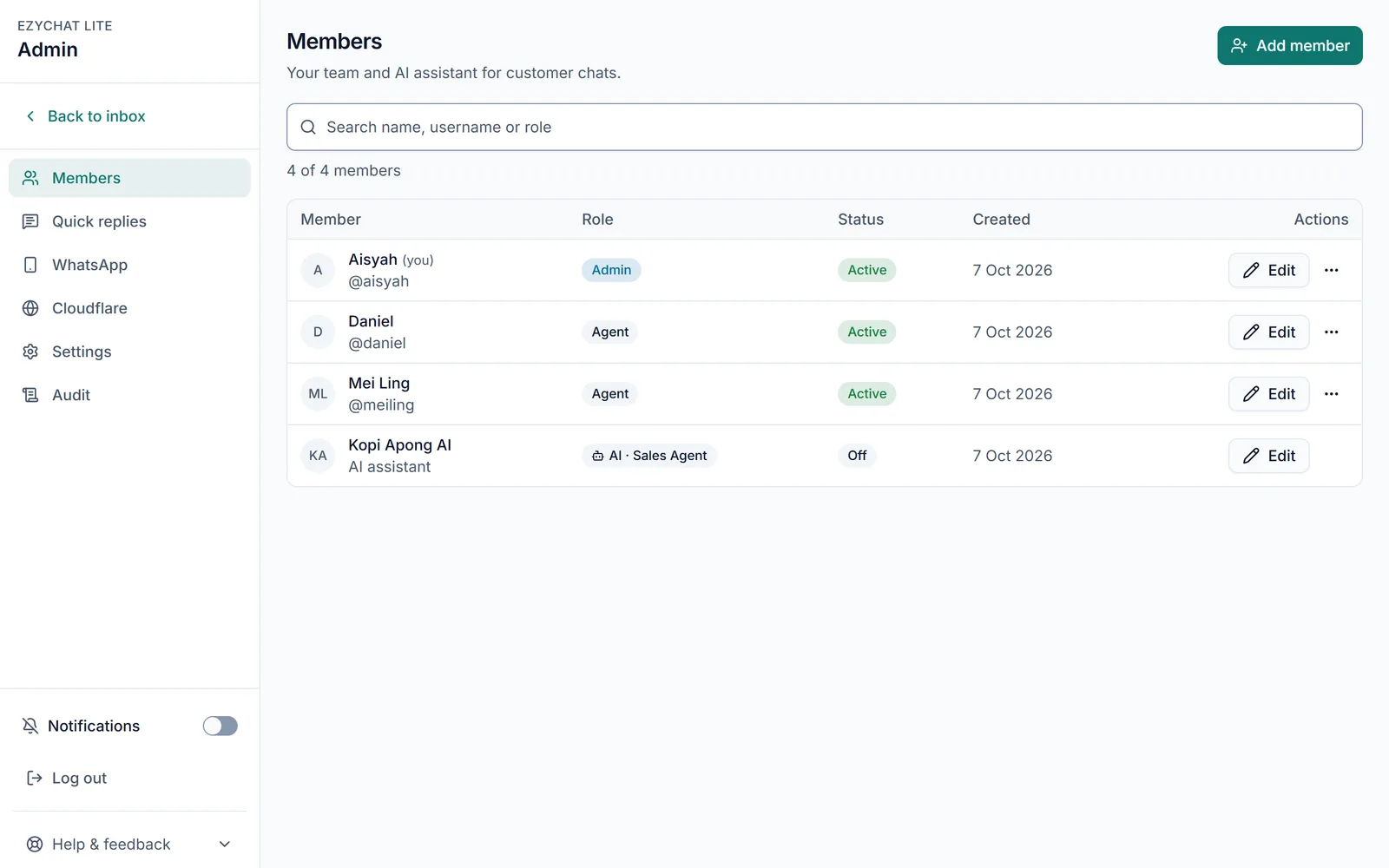
Go to Admin → Members and click Add member.
Choose a Role: Agent for people who answer chats, or Admin for people who also manage members, WhatsApp and settings.
Enter a Username and Display name, type a Temporary password or click Generate, then click Create member.
Share the username and temporary password with them. They are asked to change it at first sign-in.
Each member's … menu has Reset password, Sign out everywhere and Disable.
Open the inbox from phones
Teammates open the inbox in a browser and sign in with their own account. Pick how they reach the computer running EzyChat Lite:
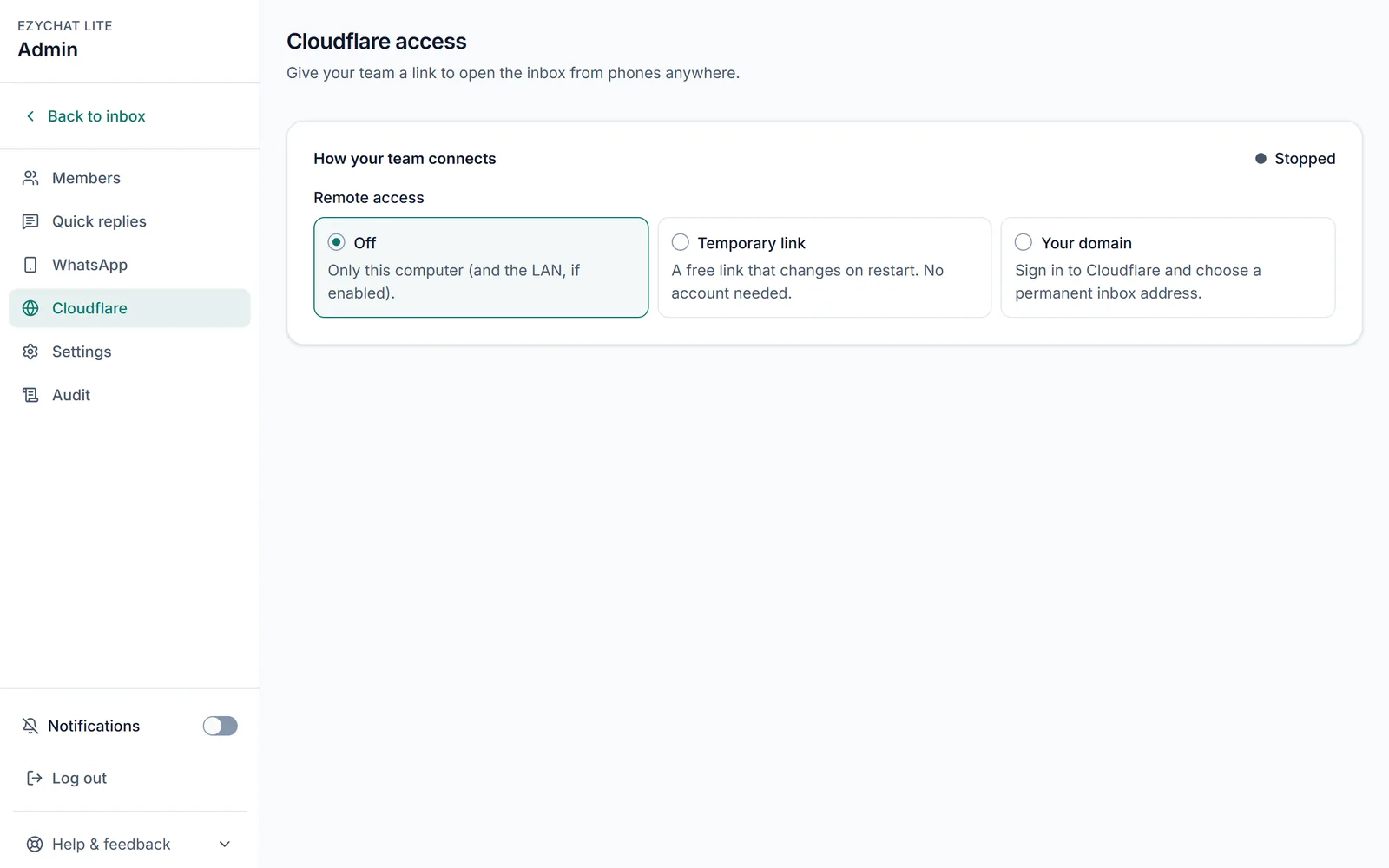
From anywhere: Cloudflare access
Go to Admin → Cloudflare. Under Remote access, choose:
- Temporary link: a free
https://….trycloudflare.comlink, no account needed. Click Create temporary link, then Copy URL or scan the QR code with a phone camera. The link changes every time the connection or the app restarts. - Your domain: a permanent address on a domain you already have in Cloudflare. Follow the three steps on the page: 1. Connect your Cloudflare account (sign in and approve the domain), 2. Choose your inbox address (domain, address prefix such as
inbox, tunnel name) and 3. Connect your inbox with Create and connect inbox.
Same Wi-Fi only: LAN
In Admin → Settings → General, turn on Allow access from the local network (LAN) and click Save settings.
Restart EzyChat Lite; network changes apply after a restart.
On a phone on the same Wi-Fi, open the computer's local IP address with the port, for example
http://192.168.1.20:7420(7420 is the default port).
LAN traffic is plain HTTP
Passwords and messages travel unencrypted on your local network. Only enable LAN on a network you trust; use Cloudflare access for encrypted remote access.
On each phone
Open the inbox link and sign in.
Add it to the home screen: in Safari on iPhone tap Share, then Add to Home Screen; on Android use the browser menu.
Open EzyChat Lite from the home screen and turn on Notifications. On iPhone, notifications only work from the home-screen app, not from a Safari tab.
Keep the computer running
The inbox works while EzyChat Lite runs. Closing the window keeps it in the tray. To keep it running even when nobody is signed in to the computer, use Status & Service… in the tray menu to install the background service.
Assign and resolve chats
Everyone sees every chat. The tabs at the top of the inbox narrow the list: Mine, Unassigned and All, with Open and Resolved to filter by status. Use the search box to find a name or number.
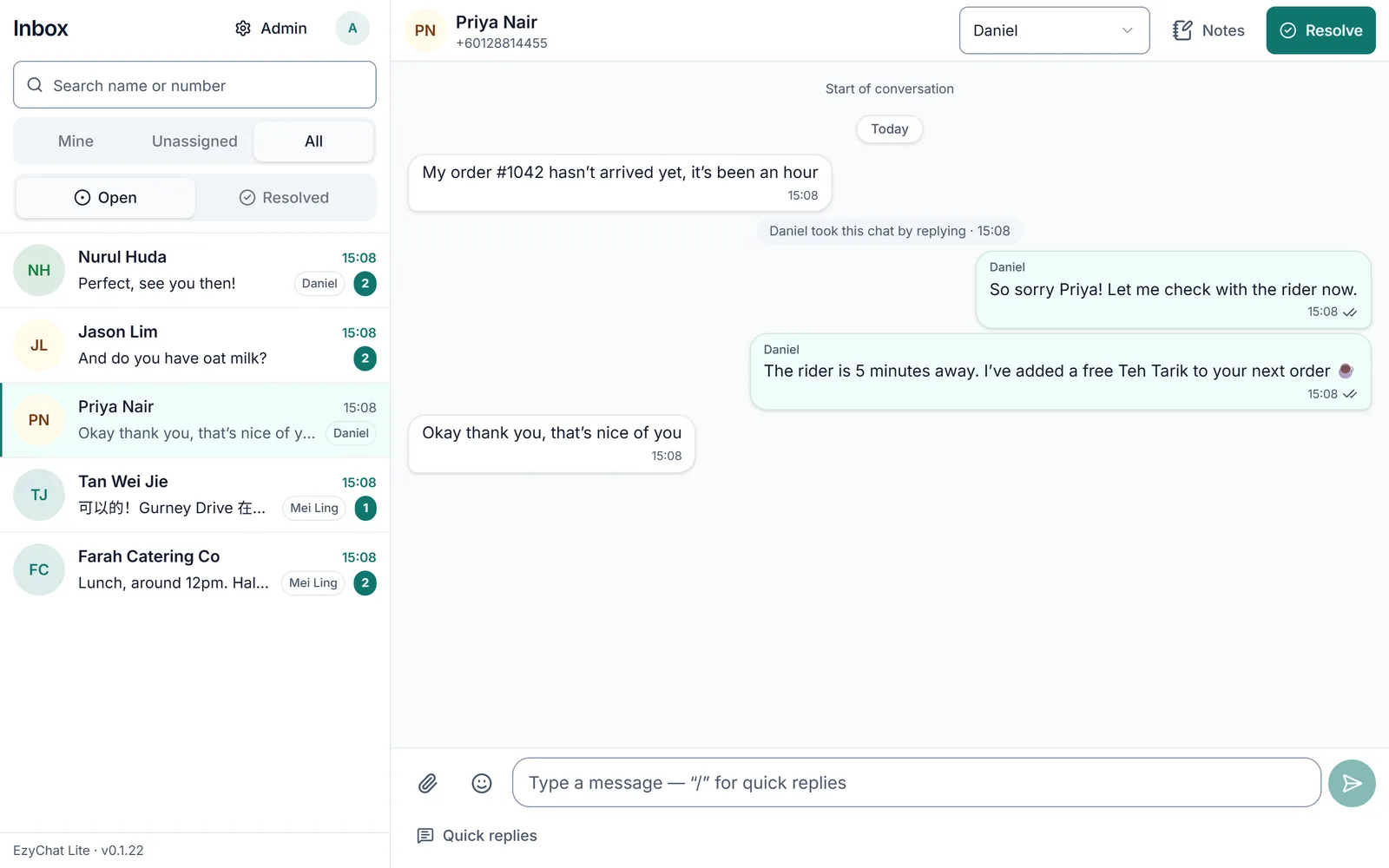
- Assign: in an open chat, pick a teammate in the Assigned to menu at the top, or Unassigned to give it back.
- Take a chat by replying: the first teammate to reply in an unassigned chat becomes its owner. If you reply in a chat assigned to someone else, EzyChat Lite asks first (Reply anyway).
- Resolve when you are done. A new message from the customer reopens the chat automatically, or click Reopen.
- At the end of the day an admin can resolve every open chat at once: Admin → Settings → Maintenance → Resolve all open chats. Messages are kept and assignees are cleared.
Reply to a specific message
Quote one message in your answer, so the customer sees exactly what you are replying to (from version 0.1.28):
On a computer, hover over the message and click Reply. On a phone, swipe the message to the right, or press and hold it.
The composer shows Replying to with the person's name. Type and send. WhatsApp shows your reply quoting that message.
To cancel, press
Escor click ✕. Switching chats also clears it.
It works for text and attachments, for customer and team messages, and for older messages too.
Quick replies
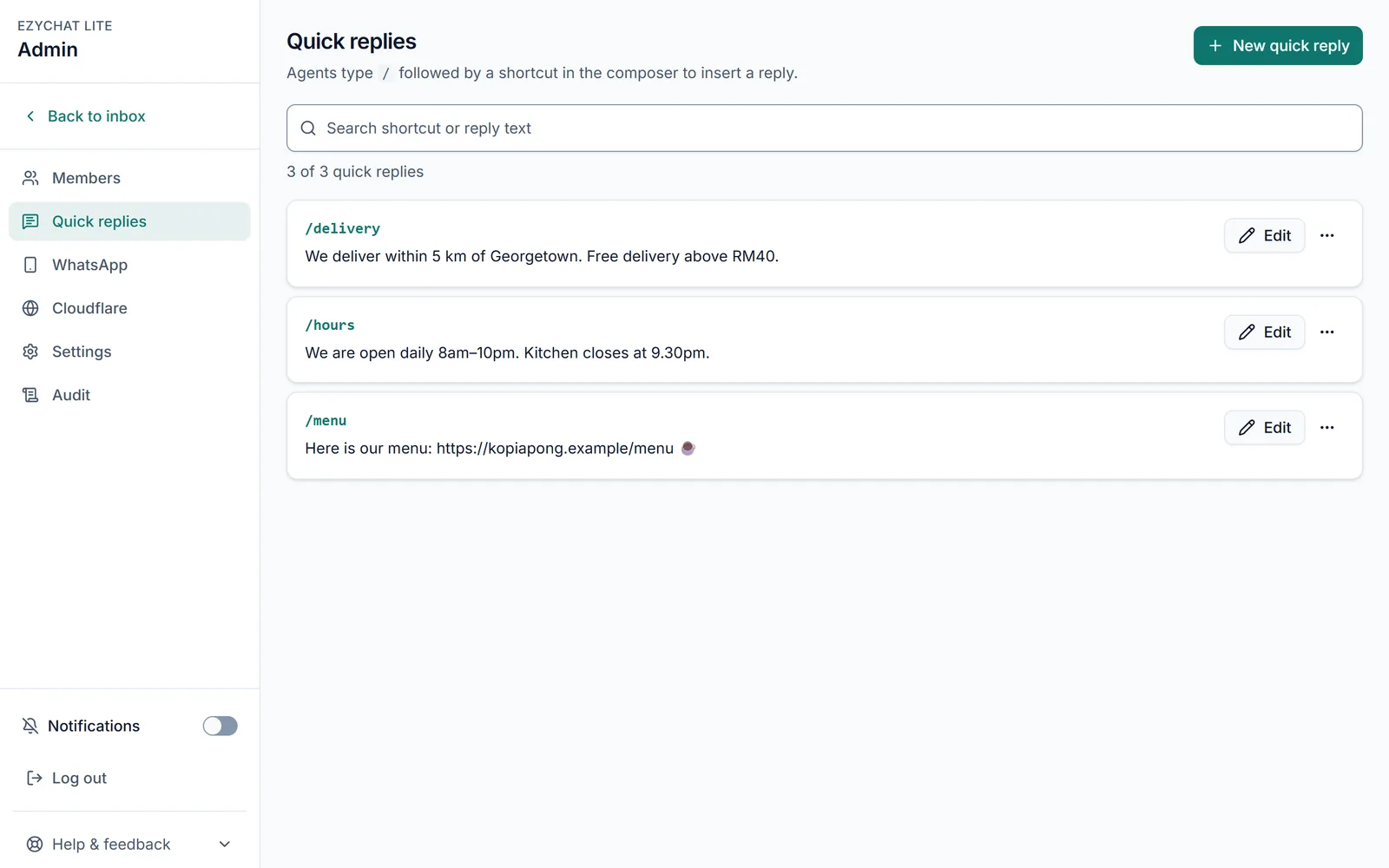
Save answers you send often and insert them in two keystrokes.
An admin goes to Admin → Quick replies and clicks New quick reply.
Enter a Shortcut (1–32 lowercase letters, digits, "-" or "_", such as
price) and the Reply text.In any chat, type
/in the message box, then the shortcut, and pick the reply. You can edit it before sending.
Internal notes
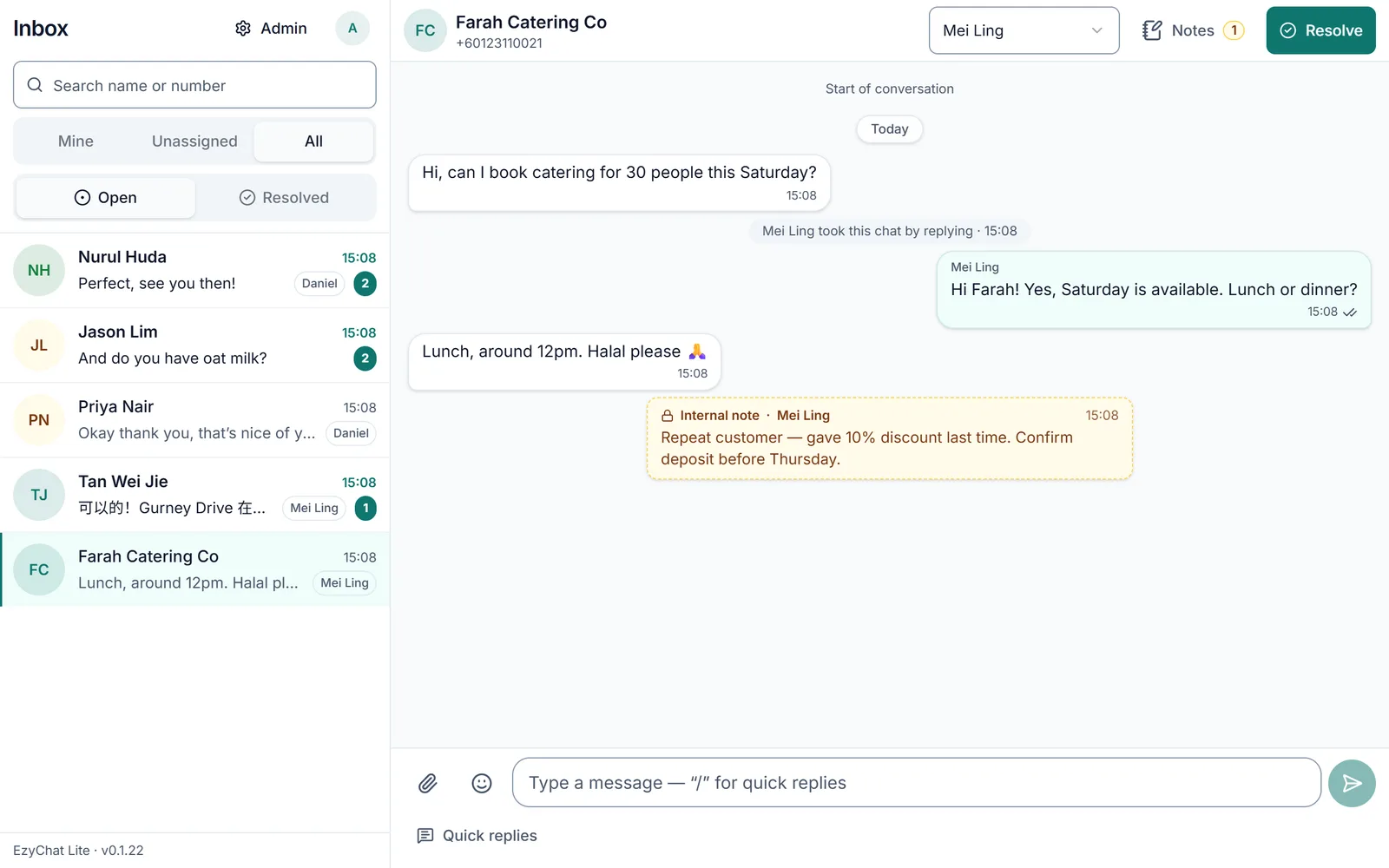
Leave context for your teammates inside a chat. Only your team can see notes; they are never sent on WhatsApp.
In a chat, click Notes at the top.
Type in Add a note for your team and click Add note.
Next to Notes, the Customer button keeps the customer's name, company, email, address and tags, so any teammate can pick up the chat.
Next steps
- Let an AI assistant read your inbox and answer questions about it: Connect your AI assistant (MCP).
- Stay up to date: the computer running EzyChat Lite checks for new versions and offers the update. Check manually with About EzyChat Lite → Check for updates or from the tray menu. Phones update with it automatically.