 EzyChat
EzyChat Lite guide
Connect your AI assistant (MCP)
Let an AI assistant such as Claude or Gemini read your EzyChat Lite inbox and help you refine your AI Sales Agent, using a personal access token.
Written for EzyChat Lite 0.1.29. Button and menu names match the app in English.
What your assistant can do
EzyChat Lite can let an AI assistant that supports MCP (Model Context Protocol) read your team inbox, so you can ask it questions in plain language. It works with Claude Code, Claude Desktop, Gemini CLI and any other MCP app that accepts a server URL and an Authorization header, such as Codex CLI, Cursor or VS Code. Available from EzyChat Lite 0.1.27.
The assistant can:
- list chats, newest activity first, with status, assignee and last message;
- read one chat's messages (attachments are described by type and file name only), its assignment history and its internal notes;
- get inbox statistics: open and resolved chats, open chats per teammate, chats waiting for a reply, and daily activity.
From EzyChat Lite 0.1.29 it can also help you refine your AI Sales Agent:
- read its AI instructions, hand-off rules and business context, and see how often it hands chats to the team, and why;
- test a customer message against the saved setup or a draft, without touching any chat;
- change the AI instructions, the hand-off rules or a business context text item. Changes take effect right away; every version is kept and every change is in the audit log.
What it can't do
The assistant cannot send messages to customers, assign or resolve chats, change uploaded files, the AI connection or model, or turn the AI Sales Agent on or off. Access is off by default and only an admin can turn it on.
Where it works
- On the computer running EzyChat Lite: always, at
http://127.0.0.1:7420/mcp(7420 is the default port). - From anywhere: through your Cloudflare tunnel, over HTTPS. Start one under Admin → Cloudflare first (see Getting started). With a Temporary link, the address changes when the app restarts, so you would need to update your assistant; Your domain keeps it stable.
- Not over the LAN: requests from other devices on your local network are refused, because LAN traffic is plain HTTP and the token would travel unencrypted.
Turn on access and create a token
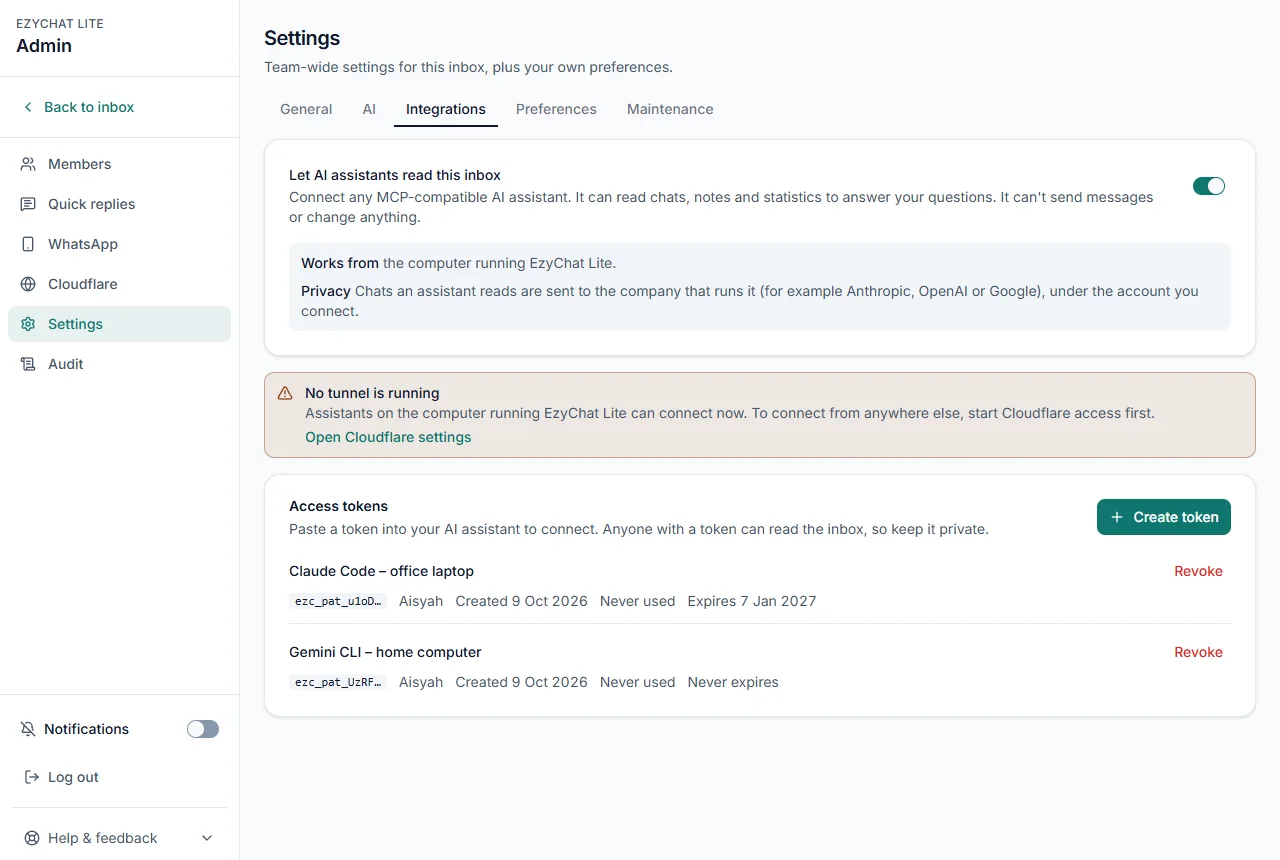
Sign in as an admin and go to Admin → Settings → Integrations.
Turn on Let AI assistants read this inbox. If no tunnel is running, the page says No tunnel is running: assistants on this computer can connect now, and Open Cloudflare settings takes you to the tunnel.
Under Access tokens, click Create token. Give it a Name you will recognise (for example which computer), and choose Expires after: 30 days, 90 days (the default), 1 year or Never. Click Create token.
Copy your token now: this is the only time it is shown. If you lose it, revoke it and create a new one. Create one token per assistant and computer.
Connect your assistant
Under Connect your assistant, the same dialog shows ready-to-copy setup with your real address and token filled in. Use it rather than typing. The examples below use placeholders: replace https://<your-inbox-address>/mcp with the server URL from the app and <your-token> with your token.
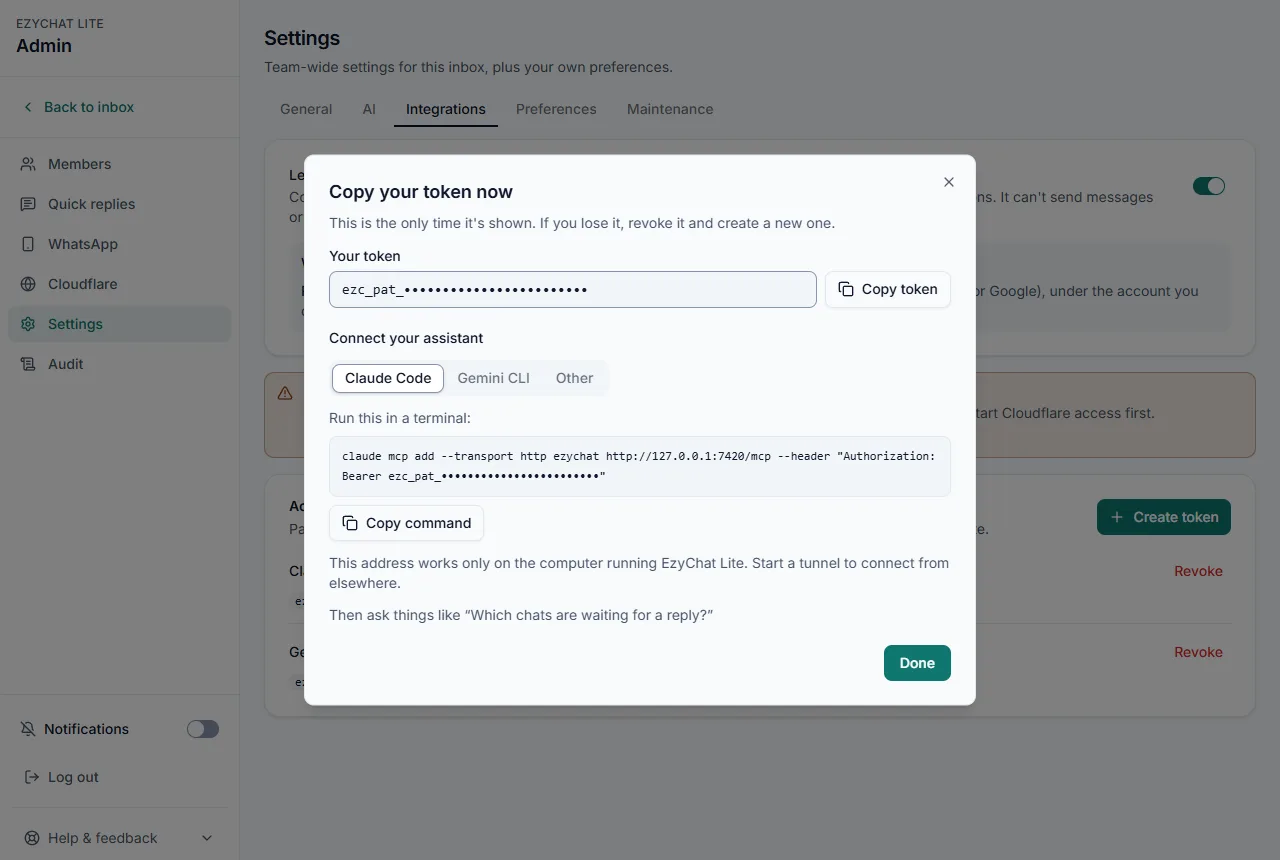
Claude Code
claude mcp add --transport http ezychat https://<your-inbox-address>/mcp --header "Authorization: Bearer <your-token>"
Claude Desktop
Claude Desktop connects with your token through mcp-remote, a small bridge it starts by itself, so no sign-in is needed. You need Node.js installed.
In Claude Desktop, open Settings → Developer → Edit Config. This opens
claude_desktop_config.json(Windows:%APPDATA%\Claude, Mac:~/Library/Application Support/Claude).Add the
ezychatentry undermcpServers(keep any servers already there), with your server URL and token:
{
  "mcpServers": {
    "ezychat": {
      "command": "npx",
      "args": [
        "-y",
        "mcp-remote",
        "https://<your-inbox-address>/mcp",
        "--header",
        "Authorization:${AUTH_HEADER}"
      ],
      "env": {
        "AUTH_HEADER": "Bearer <your-token>"
      }
    }
  }
}Quit Claude Desktop completely and open it again.
ezychatappears among its tools; then ask about your inbox.
Keep Authorization:${AUTH_HEADER} exactly as written, with no spaces: the token goes in env because Claude Desktop on Windows breaks arguments that contain spaces.
Gemini CLI
{
  "mcpServers": {
    "ezychat": {
      "httpUrl": "https://<your-inbox-address>/mcp",
      "headers": {
        "Authorization": "Bearer <your-token>"
      }
    }
  }
}Other MCP apps (Codex CLI, Cursor, VS Code…)
In any MCP app that accepts a server URL and a header, add an HTTP server with these two values. The Other tab in the app shows them with Copy URL and Copy header buttons.
https://<your-inbox-address>/mcp
Authorization: Bearer <your-token>
ChatGPT and claude.ai connectors are not supported yet
Apps that only sign in with OAuth, such as ChatGPT and claude.ai connectors (including the Connectors screen in Claude Desktop), cannot connect yet. Use the token setup above, or another app that accepts a URL and an Authorization header.
Ask about your inbox
Once connected, ask your assistant things like:
- “Which chats are waiting for a reply?”
- “How many open chats does each teammate have?”
- “Summarise my chat with Mei Ling, including our internal notes.”
- “How many messages came in each day this week?”
The assistant never replies to customers. To reply, assign or resolve, use the inbox as usual.
Refine your AI Sales Agent
From EzyChat Lite 0.1.29, your assistant can study why the AI Sales Agent hands chats to the team, suggest better instructions or hand-off rules, test them, and save them for you. Ask things like:
- “Why does the Sales Agent hand off so many chats this week? Look at the hand-off reasons and our hand-off rules.”
- “Our customers are businesses. Only hand off for quotations when they ask for a formal quotation. Test it with a few customer messages, then apply it.”
- “Add a business context note on how we sell: ask for company name and number of users before offering a quotation.”
- “Show the history of the hand-off rules and put back yesterday's version.”
Changes take effect right away
Saved changes reach customers immediately. Ask your assistant to test first; testing uses your AI connection. Every version is kept: ask the assistant for the history to put an older version back. Each change is in Admin → Audit with the token and the reason the assistant gave.
Tokens, privacy and safety
- Treat a token like a password. Anyone with it can read the inbox and change your AI Sales Agent's setup, so keep it private and never paste it into a shared chat or file.
- Revoke a token any time under Access tokens (Revoke, then Revoke token). Any assistant using it stops working right away. Turning off Let AI assistants read this inbox stops all of them.
- The token list shows when each token was created, last used and when it expires. Admin → Audit records when access is turned on or off, when tokens are created or revoked, when a token is rejected, and every AI setup change an assistant makes (with the token and its reason).
- Privacy: chats an assistant reads are sent to the company that runs it (for example Anthropic, OpenAI or Google), under the account you connect. Only connect assistants you are allowed to share customer conversations with.